 HI








Vector vs. raster: which file format do you need for your logo and artwork?
SVG, AI, EPS, PDF, PNG, JPG — what each format is for, why logos should be vector, and which files to ask for when you order artwork.
 admin_cartoonsazcartoonsaz में लेखक
PDF डाउनलोड करें
Design Fundamentals · Logo Files
Vector vs. Raster: What’s the Difference, and Can You Convert Your Logo to Vector?
Why a logo that looks sharp on Instagram turns blurry on a shop sign — and how to fix it without starting from scratch.
About 9 min readCartoonsaz
The short answer: raster images are made of a fixed grid of pixels, so they lose sharpness when enlarged beyond their resolution. Vector graphics are built from mathematically defined paths, so their shapes stay crisp at any size. That is why every logo should have a vector master file — and why a JPG or PNG logo can often be professionally redrawn as vector instead of redesigned.
Imagine you had a logo designed a few years ago. It looks great on your website and social media profiles. Then you order a storefront sign or new product packaging, and the proof comes back soft and jagged around every edge.
Your printer asks for a vector file. All you have is a PNG someone emailed you long ago.
Do you need a new logo? In many cases, no. An existing logo can usually be rebuilt as a clean vector file while keeping the design — and the brand recognition — you already have. This guide explains what vector and raster graphics are, how they differ, which file formats you actually need, and how logo vectorization works in practice.
In this article
- What are raster graphics?
- What are vector graphics?
- Vector vs. raster compared
- Why logos need a vector master
- Converting a JPG or PNG logo
- Auto-tracing vs. manual redrawing
- Can AI vectorize a logo?
- What can (and can’t) be vectorized
- How professional vectorization works
- SVG, AI, EPS, PDF, PNG, and JPG
- Is your logo really vector?
- Printing and resolution
- Files to request from a designer
- FAQ
What are raster graphics?
A raster image — also called a bitmap — is a grid of tiny colored squares called pixels. Each pixel stores a single color, and millions of them together form the picture you see. Photos from your phone, screenshots, and most digital paintings are raster images.
Common raster formats include JPG/JPEG, PNG, WebP, GIF, TIFF, and BMP.
The key fact about a raster image is that its detail is fixed when it is created. A 300 × 300-pixel logo contains exactly 90,000 pixels of information, no more. Stretch it across a two-meter sign and the software has to invent the missing pixels by interpolating between the ones it has. The result is a blurry image, blocky “staircase” edges, or both.
That doesn’t make raster images low quality. A high-resolution photograph can print beautifully, and raster is the right choice for photos, soft lighting, and natural textures. The limitation is simply that raster quality depends on pixel count, and pixel count is fixed.
What are vector graphics?
A vector graphic doesn’t store pixels. It stores instructions: points, lines, curves, and shapes described with geometry. When you draw a circle in Adobe Illustrator, the file records the circle’s position, size, and fill color. Every time the circle is displayed or printed, it is redrawn from that description at whatever size is needed — so its edges stay crisp at the size of a postage stamp or a billboard.
That makes vector art the natural format for logos, icons, typography, mascots and cartoon characters, and most elements of a visual identity. Digital fonts work on the same principle: formats such as OpenType describe each letter as an outline built from curves, which is why text stays sharp at any point size.
Anchor points and Bézier curves
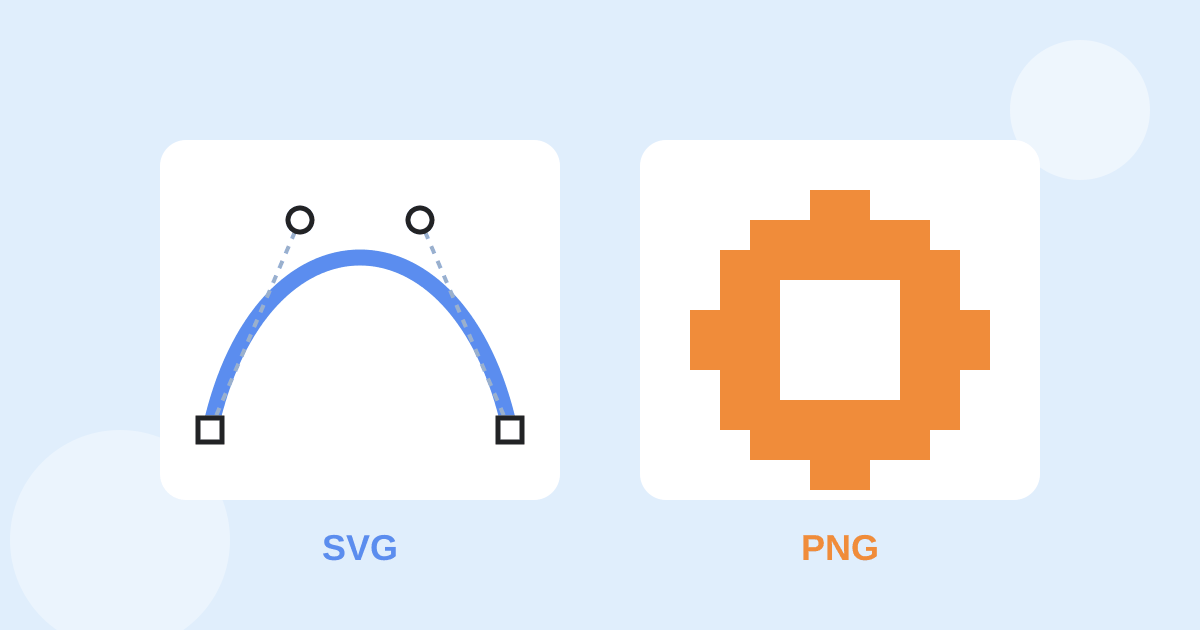
Vector shapes are made from paths. A path passes through anchor points, and the curve between two anchors is shaped by control handles. This system is known as a Bézier curve, and it’s what designers manipulate with the Pen tool. A well-built logo uses as few anchor points as possible, placed precisely, so the curves are smooth and easy to edit.
Two common misconceptions are worth clearing up. First, vector files aren’t automatically smaller than raster files — a detailed illustration with thousands of paths can outweigh a compressed JPG. Second, vector art isn’t limited to flat colors: it supports gradients, transparency, and complex color work.
Vector vs. raster: a practical comparison
The clearest way to see the difference is to zoom in. Below, the same logo is shown as a small 24 × 24-pixel raster image and as a vector shape.
| Vector | Raster | |
|---|---|---|
| Built from | Paths, anchor points, and curves | A fixed grid of pixels |
| Enlarging | Shapes stay sharp at any size | Limited by the original resolution |
| Best for | Logos, icons, type, illustrations with clean shapes | Photos, textures, painterly artwork |
| Editing | Shapes and colors can be adjusted individually | Depends on layers and the original file |
| File size | Depends on path complexity | Depends on dimensions and compression |
| Common formats | SVG, AI, EPS, PDF | JPG, PNG, WebP, GIF, TIFF |
Neither format is better across the board. Vector suits designs with defined shapes that must work at many sizes; raster suits photographs and rich, subtle detail. Most brands need both — a vector master and raster exports made from it.
Why every professional logo needs a vector master file
A logo isn’t used once. Today it may live only on your Instagram profile, but sooner or later you will probably need it for:
- Business cards, letterheads, and invoices
- Product packaging and labels
- Storefront signage and trade-show displays
- Apparel, embroidery, and promotional merchandise
- Laser engraving and vinyl cutting
- Websites and mobile apps
- Billboards and outdoor advertising
With a vector master, each of these is an export away: you produce a file at the right size and format for the job. Some uses depend on vector outright — vinyl cutters and laser engravers follow paths, not pixels. With only a small JPG, you hit a wall every time a new use comes up.
The best practice is simple: keep one editable vector master of your logo, and generate PNG and JPG versions from it whenever you need them.
Can you convert a JPG or PNG logo to vector?
Yes — most pixel-based logos can be rebuilt as true vector artwork. The process goes by several names: logo vectorization, raster-to-vector conversion, vector tracing, or logo redrawing. They all describe the same goal: identifying each element of the existing logo and reconstructing it with vector paths and shapes.
The point is to recreate your logo as a scalable file, not to design a new one.
Consider a hypothetical restaurant whose logo features a cartoon chef beside the restaurant’s name. The original design file is long gone, and the only copy is a small PNG. A designer can redraw the chef’s face, hat, and outline, rebuild the lettering, and match the colors, producing an editable file ready for menus, packaging, aprons, and signage. How closely the result matches depends on the quality of the source image and the complexity of the artwork.
Only have a JPG or PNG of your logo?
You may not need a redesign. Send your existing logo to Cartoonsaz to have it reviewed for professional vector reconstruction — we’ll assess the source quality and recommend the right approach before any work begins.
Explore Cartoonsaz servicesAutomatic tracing vs. professional manual redrawing
Plenty of online tools will turn a PNG into an SVG in seconds. But a file ending in .svg is not automatically a professional, production-ready logo.
Automatic tracing
Auto-tracing software detects the edges between colors and converts them into paths. Adobe Illustrator’s Image Trace and Inkscape’s Trace Bitmap are well-known examples. For simple, high-contrast logos with few colors, auto-tracing can produce a usable starting point. On more complex artwork, it tends to cause problems:
- Far more anchor points than the shape needs
- Wobbly curves and lumpy circles
- Distorted letterforms
- Lost fine details, or noise traced as detail
- Shifted colors and proportions
Manual vector redrawing
In manual redrawing, a designer studies the original and rebuilds each shape by hand, typically with the Pen tool and Bézier curves. This gives control over symmetry, stroke weight, curve quality, and proportions. It also makes it possible to identify the original typeface — or carefully reconstruct custom lettering — instead of accepting whatever a tracing algorithm guesses. For commercial logos, custom type, and cartoon characters, manual redrawing usually delivers more accurate results. In practice, many projects combine both: an automated trace as a reference, refined or redrawn by hand.
| Automatic tracing | Manual redrawing | |
|---|---|---|
| Speed | Usually faster | Takes more time |
| Line accuracy | Depends on the source image | Controlled by the designer |
| Anchor points | Often excessive | Kept to a clean minimum |
| Lettering | Frequently distorted | Matched or rebuilt carefully |
| Complex logos | Usually needs cleanup | Generally the better fit |
| Final quality | Variable | Depends on the designer’s skill |
Can AI tools convert a logo to vector?
AI-powered tools have become noticeably better at recognizing shapes, edges, and colors. Services such as Vectorizer.AI, and the vectorizing features in tools like Recraft, can produce impressive results on suitable images.
It helps to separate two very different jobs:
- Generating new artwork. The AI creates a new design from a text prompt or reference image.
- Vectorizing existing artwork. The tool tries to convert the shapes and colors of an existing image into vector paths.
For a brand, only the second job matters, and fidelity is everything. If a tool subtly reshapes a letter, shifts the angle of a symbol, or changes the proportions, the result no longer matches your identity — even if it looks clean. Treat automated output as a draft: review it closely against the original, and correct it before using it professionally.
Which images can be vectorized — and which shouldn’t be?
Technically, almost any image can be approximated with vector paths. Whether that is useful is another question.
Good candidates
- Minimal logos with simple shapes, limited colors, and clear edges.
- Wordmarks where the lettering is legible and the letterforms are clear.
- Icons and symbols, which are usually built from simple geometry.
- Cartoon characters and mascots, especially with defined outlines and flat or cel-shaded color.
- Line art, such as black-and-white drawings and inked sketches.
Harder or impractical cases
- Photographs. Faces, landscapes, and product shots contain endless subtle color changes. Converting them to vector means simplifying them into an illustrated style.
- Textured artwork. Watercolor, oil painting, and heavily textured digital painting rarely translate well into pure vector form.
- Very blurry images. If key details are gone, a designer may need additional references to reconstruct them accurately.
- Logos with photographic effects. Realistic lighting, complex shadows, and real-world textures usually need to be simplified.
What about an old, low-quality logo?
It can often be rebuilt. Even from a small or blurry file, a designer can usually reconstruct the overall shapes, colors, and lettering. What no method can do is reliably recover detail that isn’t in the image. If you have other references — an old printed brochure, a photo of your signage, a business card — include them. They can make a significant difference to accuracy.
How professional logo vectorization works
Every project differs, but a professional vectorization workflow generally follows these steps:
Review the source
The designer checks the image’s size, clarity, colors, and fine details, and gathers any additional references you can provide.
Choose the approach
Depending on complexity, the logo is either auto-traced and refined by hand or redrawn entirely from scratch.
Build the vector paths
Shapes and curves are reconstructed, with close attention to symmetry, proportions, and letterforms.
Refine color and detail
Colors are matched to the reference, and small details are cleaned up and finalized.
Quality control
The logo is checked at very small and very large sizes to catch uneven curves, gaps, and stray points.
Export the files
The final artwork is delivered in the formats your project needs, such as AI, SVG, EPS, PDF, and PNG.
SVG, AI, EPS, PDF, PNG, and JPG explained
The right format depends on where the logo will be used. Pick a use below to see which files typically fit.
I need my logo for…
| Format | Typical content | Best used for |
|---|---|---|
| SVG | Vector (can also embed raster images) | Websites, apps, icons; an open, editable vector format |
| AI | Vector and raster | Adobe Illustrator working and master files |
| EPS | Vector and raster | Older format still requested by some printers and sign makers |
| Vector, raster, and text | Print-ready files and sharing artwork | |
| PNG | Raster | Logos with transparent backgrounds on screen |
| JPG | Raster | Previews and photos; no transparency |
| WebP | Raster | Efficient, compressed images for the web |
Is a PDF always vector?
No. A PDF can contain pixel images, text, and vector paths side by side. Placing a JPG inside a PDF doesn’t turn it into vector artwork.
Is an SVG always true vector?
No. An SVG can simply wrap an embedded raster image. To know whether a logo is genuinely vector, you need to check what the file actually contains.
Do printers always need EPS?
Not necessarily. Many printers now prefer a vector PDF, and requirements vary by printer and process. Check their file specifications before you send anything.
How to check whether your logo is truly vector
The file extension alone won’t tell you. Instead:
- Open it in a vector editor such as Illustrator, Inkscape, or Affinity Designer. If you can select individual shapes and see their anchor points, those parts are vector.
- Switch to outline view. In Illustrator (View → Outline), vector shapes appear as thin outlines. An embedded image shows up as a plain box.
- Zoom in dramatically. Vector edges stay smooth at extreme magnification; raster edges break into pixels.
- For SVG files, peek at the code. Open the file in a text editor. Elements such as
<path>or<circle>indicate vector content; an<image>tag with a long block of encoded data means a bitmap is embedded.
Note that a genuine vector file isn’t necessarily well organized. Whether elements are grouped, layered, or easy to edit depends on how the file was built.
Vector graphics, printing, and resolution
For raster images, what matters is having enough pixels for the final printed size. About 300 PPI (pixels per inch) at final size is a common guideline for items viewed up close, like business cards and brochures. It isn’t a universal rule: large-format prints viewed from a distance, such as banners and billboards, often work at much lower resolutions. (You’ll often hear “DPI” used for the same idea; strictly speaking, DPI describes the printer’s dots, and PPI describes the image’s pixels.)
Vector shapes aren’t tied to a pixel count. The printer’s software renders them at the device’s own resolution, which is why one vector logo can serve a business card and a building wrap. Photos or textures placed inside a vector layout, however, remain raster and still need sufficient resolution.
Specialized production needs extra preparation. Embroidery files must be “digitized” into stitch formats for embroidery machines, while laser engraving and vinyl cutting often need clean, closed paths and outlined strokes. A vector logo is the ideal starting point, but it may still need adapting for the equipment.
What files should you request from your logo designer?
Before ordering a logo design or vectorization, think about where the logo will be used. For most businesses, a complete package includes:
- An editable vector master file (AI or SVG)
- A vector PDF for printing and sharing
- An EPS file, if your printer requires one
- PNG files with transparent backgrounds
- Full-color, black, and white (or single-color) versions
- Color values for print and screen (for example, CMYK, RGB, and HEX; Pantone if you use spot colors)
- Horizontal and stacked layouts, if your logo has them
- The names of the fonts used, or text converted to outlines
Just as important: agree on usage rights and ownership of the final artwork at the start of the project.
Frequently asked questions
Does converting a PNG to SVG improve logo quality?
Only if the logo is rebuilt as real vector paths. Renaming the file or wrapping the PNG inside an SVG changes nothing — the image is still made of pixels.
Do I need the original design file to vectorize my logo?
No. A JPG or PNG is usually enough to start. Larger, clearer images — and any extra references — help produce a more accurate result.
Can a cartoon logo or mascot be vectorized?
Yes. Cartoon characters with clear outlines and limited colors are excellent candidates for vector redrawing.
Can a photograph be converted to vector?
You can create a simplified or illustrated vector version of a photo, but reproducing every photographic detail in vector form is rarely practical.
Will vectorization change my logo’s design?
A careful redraw aims to preserve the original exactly. How closely it matches depends on the quality of the source image and the level of detail in the design.
Is a vector logo useful for social media?
Yes. Social platforms use PNG or JPG files, and a vector master lets you export clean versions at whatever size each platform requires.
Should I redesign an old pixelated logo?
Not necessarily. If you’re happy with the design, explore vectorizing it first. You keep the recognition you’ve built and gain files ready for any use.
The bottom line
Vector and raster are two different ways of describing an image, and each has its place. Raster is the right choice for photographs, digital painting, and richly detailed imagery. Vector is essential for logos, icons, typography, and anything that must work across many sizes and media.
If your logo exists only as a JPG or PNG, look into vectorization before commissioning a redesign. In many cases, a professional redraw can turn the logo you already have into a clean, editable, scalable file.
Keep the logo you love. Make it ready for what comes next.
Whether your logo is a simple symbol, a custom wordmark, a corporate emblem, or a cartoon character, Cartoonsaz can review its quality and complexity and recommend the right way to rebuild it as vector — preserving the design you already have as closely as the source allows.
To get started, share your current logo and a short note on how you plan to use it.
Request logo vectorizationReferences and further reading
- Adobe — Raster vs. vector images
- Adobe Help — Image Trace in Illustrator
- Adobe Help — Illustrator User Guide
- MDN Web Docs — SVG: Scalable Vector Graphics
- MDN Web Docs — Image file type and format guide
- W3C — Scalable Vector Graphics (SVG) 2 specification
- Inkscape Beginners’ Guide — Tracing an image
cartoonsaz टीम का हिस्सा — हम इलस्ट्रेशन, कैरेक्टर और विज़ुअल ब्रांडिंग पर लिखते हैं।
संबंधित लेख
सभी देखें टिप्स और गाइड Comics in content marketing: how brands use comic strips to explain and sell
Short comics explain products, share customer stories and make LinkedIn and Instagram posts people actually read. Formats, ideas and a simple production plan.
 टिप्स और गाइड How much does a custom illustration cost? What really affects the price
Complexity, style, usage rights, revisions and deadline — a clear guide to what you pay for when you order a cartoon, logo or mascot, and how to get the best value.
 टिप्स और गाइड ग्राफिक डिज़ाइनरों के लिए 15 सर्वश्रेष्ठ AI टूल: हर रचनात्मक प्रोजेक्ट के लिए क्या चुनें
ग्राफिक डिज़ाइन के 15 AI टूल, उनके फायदे-नुकसान, मुफ़्त प्लान और इलस्ट्रेशन, ब्रांडिंग व एनीमेशन के उपयोगी सुझाव जानें।